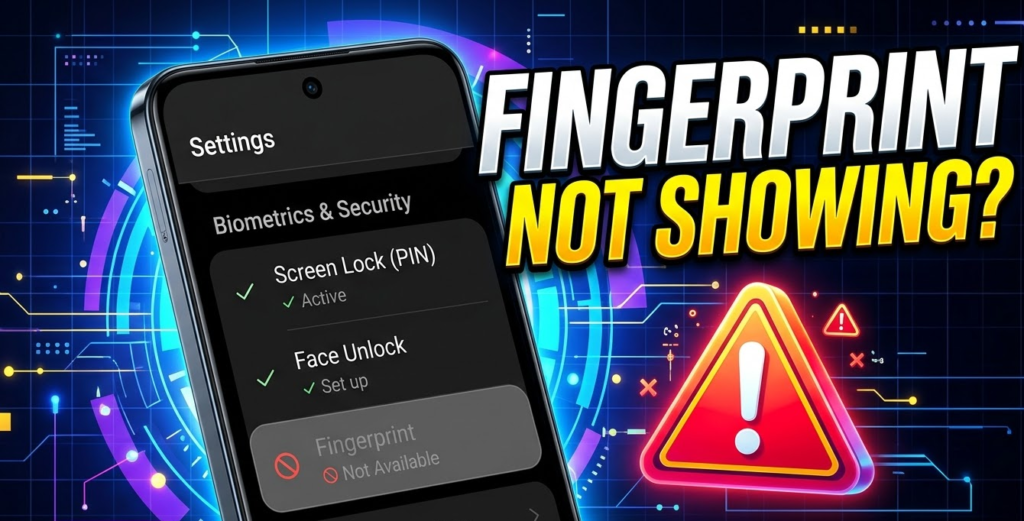
If you are using an Infinix phone and suddenly the fingerprint option has disappeared from your settings, don’t worry. This is a very common problem that many Infinix users in Pakistan face. The good news is that it can be fixed easily at home without going to any mobile shop.
In this article, we will tell you why this happens and how you can bring back the fingerprint option step by step.
Why Does the Fingerprint Option Disappear?
There are a few common reasons why the fingerprint option suddenly disappears from Infinix settings:
- You recently updated your phone’s software
- Your phone restarted after a system update
- Some security settings got changed automatically
- A third-party app interfered with the phone settings
- There is a small software bug in the system
This problem mostly happens after a software update. But the solution is simple.
Fingerprint Option Disappeared from Settings Infinix
Method 1 – Restart Your Phone First
Sometimes the simplest solution works. Just restart your Infinix phone and then check again in Settings. Go to Settings > Security and see if the fingerprint option is back.
Method 2 – Check the Correct Settings Path
Many people look for fingerprint in the wrong place. On Infinix phones, the fingerprint setting is usually found here:
Settings > Security > Fingerprint
Or sometimes:
Settings > Biometrics and Password > Fingerprint
Try both paths on your phone. The location can be slightly different depending on your Infinix model.
Method 3 – Set a Screen Lock First
This is the most important tip. On Infinix phones, if you do not have a PIN, Pattern, or Password set, the fingerprint option will not appear at all. The phone hides it on purpose.
Here is what to do:
- Go to Settings
- Tap on Security
- Tap on Screen Lock
- Set a PIN or Pattern or Password
- Now go back and check – the Fingerprint option will appear
This fixes the problem for most people.
Method 4 – Clear Cache of Settings App
Sometimes the settings app has some old data that causes this issue. You can clear it like this:
- Go to Settings
- Tap on Apps or App Management
- Find the Settings app
- Tap on Storage
- Tap Clear Cache
- Restart your phone
Method 5 – Remove Screen Lock and Set Again
If the fingerprint option is still not showing, try this:
- Go to Settings > Security > Screen Lock
- Remove your current lock (set to None or Swipe)
- Restart your phone
- Go back to Settings > Security > Screen Lock
- Set a new PIN or Pattern
- Now check for the Fingerprint option again
Method 6 – Update Your Phone Software
An outdated software version can cause this bug. Check if any update is available:
- Go to Settings
- Scroll down and tap Phone Updates or System Update
- If an update is available, download and install it
- After update, check fingerprint settings again
Method 7 – Factory Reset (Last Option)
If nothing above works, you can do a factory reset. But remember – this will delete all your data, photos, and apps. Make sure to take a backup first.
- Go to Settings
- Tap Additional Settings
- Tap Backup and Reset
- Tap Factory Reset
- Confirm and wait for the phone to reset
After reset, set up your phone again and the fingerprint option should be back.
Which Infinix Models Have This Problem?
This problem has been reported on many popular Infinix models in Pakistan, including:
- Infinix Hot 30
- Infinix Hot 40
- Infinix Smart 8
- Infinix Note 30
- Infinix Zero series
But the fix methods above work for almost all Infinix models.
Final Words
If the fingerprint option disappeared from your Infinix phone settings, the most common reason is that no screen lock is set. Just add a PIN or Pattern first, and the fingerprint option will come back. This simple step solves the problem for 90% of Infinix users.
If the problem still continues, try clearing the cache or updating your software. And if nothing works, take your phone to an Infinix service center in your city.
We hope this article helped you fix your Infinix fingerprint problem easily at home. If you found this useful, share it with your friends and family who also use Infinix phones.