Imagine picking up your phone, pressing your finger on the sensor, and nothing happens. Worse — you go to your settings to check, and the fingerprint option is missing entirely. If you are facing this exact problem with your Itel S24 fingerprint not showing, you are not alone. This issue has been reported by many users, and the good news is — most of the time, it can be fixed at home without visiting a technician.
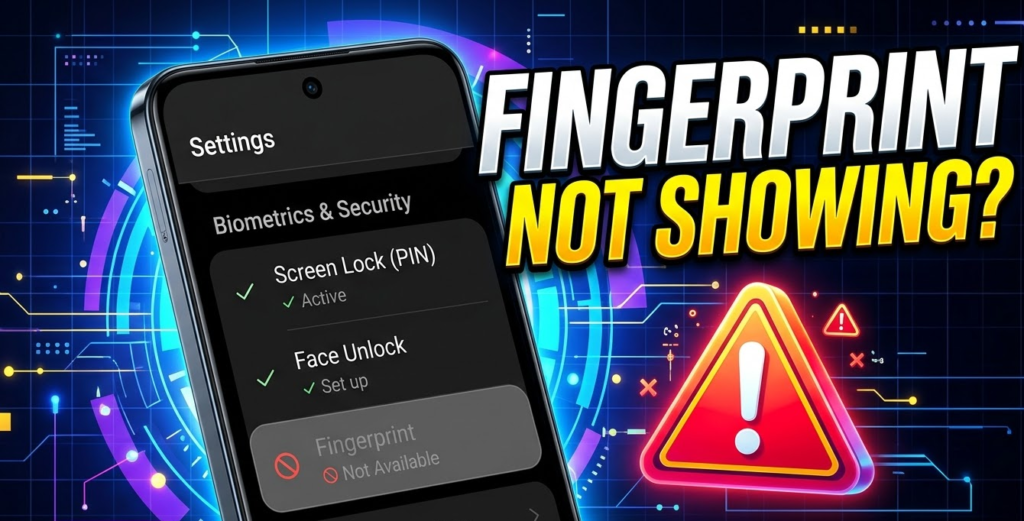
In this guide, we will walk you through every possible cause and every working solution, step by step. Whether you are a tech expert or a complete beginner, this article is written for you.
Why Fingerprint Option Is Not Showing on Itel S24
Before jumping to fixes, it helps to understand why this happens. There are several common reasons behind a fingerprint option missing on the Itel S24.
Software Bug Sometimes, a minor glitch in the operating system causes the fingerprint menu to disappear from settings. This is more common after a phone restart or an interrupted app update.
Disabled Settings or Parental Controls If your phone has any restrictions enabled — such as parental controls or a managed profile — some security options like fingerprint can be hidden automatically.
Sensor Hardware Issue If the fingerprint sensor itself is physically damaged, cracked, or has moisture behind it, the phone may stop recognizing the sensor altogether and remove the option from the menu.
System Update Glitch A failed or incomplete software update is one of the most frequent causes of this problem. If your Itel S24 was updating and the process was interrupted, it could cause system features to malfunction.
Third-Party App Interference Some security or lock-screen apps can conflict with the phone’s built-in fingerprint system, causing it to vanish from settings.
Fix Itel S24 Fingerprint Option Not Showing
Here are the most effective methods to fix fingerprint issue Itel S24 step by step. Start from the top and work your way down.
Fix 1: Check Fingerprint Settings
Sometimes the option is just hidden deep in the settings menu.
- Open Settings on your Itel S24.
- Scroll down and tap Security or Biometrics and Security.
- Look for Fingerprint or Fingerprint Unlock.
- If it is greyed out, make sure you have set up a PIN or pattern first — Itel requires a backup lock before enabling fingerprint.
Fix 2: Restart Your Phone
This sounds simple, but it works surprisingly often.
- Press and hold the Power button for 3–5 seconds.
- Tap Restart from the menu.
- Wait for the phone to fully reboot.
- Go back to Settings and check if the fingerprint option is missing or has returned.
Fix 3: Update Your Phone Software
An outdated system can cause features to break. Keeping your software updated is essential.
- Go to Settings.
- Scroll down and tap About Phone or System.
- Tap Software Update or System Update.
- If an update is available, download and install it.
- Restart your phone and check the fingerprint settings again.
Fix 4: Reset App Preferences
Corrupted app settings or disabled system apps can cause the Itel S24 fingerprint not showing issue.
- Open Settings.
- Tap Apps or Application Manager.
- Tap the three-dot menu (top right corner).
- Select Reset App Preferences.
- Confirm by tapping Reset.
- Restart your phone and check fingerprint settings.
Fix 5: Clear Settings App Cache
The Settings app itself can develop cache issues that hide certain menus.
- Go to Settings > Apps.
- Find and tap Settings (the app itself).
- Tap Storage.
- Tap Clear Cache, then Clear Data.
- Restart your phone.
Fix 6: Check for Hardware Issues
If none of the above steps worked, the fingerprint sensor may have a physical problem.
- Look at the sensor area closely — is there a crack or deep scratch?
- Is there any moisture or liquid near the sensor?
- Did you recently drop the phone?
If yes to any of these, the hardware may be damaged and will need professional repair.
Fix 7: Factory Reset (Last Option)
If everything else has failed, a factory reset can resolve deep software issues. Warning: this will erase all your data. Back up everything first.
- Go to Settings.
- Tap General Management or System.
- Tap Reset or Factory Reset.
- Tap Reset Phone and confirm.
- Once the phone restarts, set it up fresh and check if you can now enable fingerprint on Itel S24.
How to Enable Fingerprint on Itel S24
Once the option reappears in your settings, here is how to set it up properly.
- Open Settings.
- Tap Security or Biometrics and Security.
- Tap Fingerprint Unlock.
- Enter your PIN, pattern, or password (required as a backup).
- Follow the on-screen instructions to place your finger on the sensor.
- Lift and place your finger repeatedly until the fingerprint is fully recorded.
- Tap Done when complete.
To enable fingerprint Itel S24 successfully, make sure your finger is clean and dry during registration. Wet or oily fingers lead to poor registration and future unlock failures.
You can also add multiple fingerprints (usually up to 5) by repeating the process. This is useful if you want to use both thumbs or allow a trusted person to unlock your phone.
When to Visit a Service Center
Not every problem can be solved at home. Here are clear signs that your Itel S24 needs professional attention.
The fingerprint sensor is cracked or physically broken. No software fix will repair a damaged sensor. You will need a hardware replacement.
The option never returns even after a factory reset. This strongly suggests a hardware-level failure, not a software glitch.
Your phone screen was replaced recently. Some third-party screen replacements can accidentally damage or disconnect the fingerprint sensor cable (especially if the sensor is under the screen).
Water damage has occurred. Liquid inside the phone can corrode the fingerprint sensor and cause it to stop functioning permanently.
In these cases, visit an authorized Itel service center. Do not attempt to open the phone yourself — this will void your warranty and may cause further damage.
FAQs
Why did the fingerprint option disappear suddenly?
This usually happens after a software glitch, failed update, or when a third-party app interferes with system settings. Restarting the phone or updating the software often brings it back.
Is the Itel S24 fingerprint not showing issue a known software bug?
Yes, some Itel S24 users have reported this after certain system updates. Itel typically releases a patch fix. Keeping your phone updated is the best way to avoid this.
Will a factory reset fix the fingerprint option missing problem?
In most cases, yes — if the issue is software-related. However, if the problem is hardware damage, a factory reset will not help and you will need a service center visit.
Can I use face unlock instead while fingerprint is broken?
Yes. Go to Settings > Security > Face Unlock and set it up as a temporary alternative while you troubleshoot the fingerprint issue.
How long does it take to fix this issue?
For software-related causes, most fixes take less than 10 minutes. A factory reset takes around 20–30 minutes including setup. Hardware repair at a service center may take 1–3 days depending on availability of parts.
Does this issue affect all Itel S24 models?
It has been reported across different variants of the Itel S24. The fixes in this guide apply to all versions.
Conclusion
Dealing with Itel S24 fingerprint not showing is frustrating, especially when you rely on it every day for quick and secure access to your phone. But as you have seen, most cases of fingerprint option missing are caused by minor software glitches that can be fixed in just a few minutes from the comfort of your home.
Start with the simplest fixes — restart your phone and check the settings. If that does not work, move on to updating your software, resetting app preferences, and clearing the cache. Only consider a factory reset as your last resort, and always back up your data before doing so.
If the sensor is physically damaged or the issue persists after all these steps, do not hesitate to visit a certified Itel service center. Your security matters, and a working fingerprint sensor is a key part of keeping your phone safe.
Try these steps today and get your fingerprint working again — it is easier than you think!